

To complete this guide you will need to be an Administrator on your Mac.
Step 1:
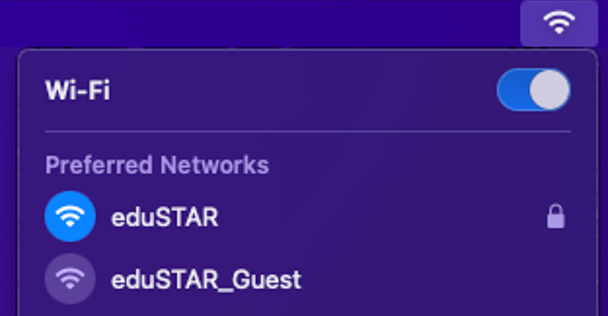
Click on WiFi icon

Step 2:
Choose eduSTAR WiFi
Step 3:
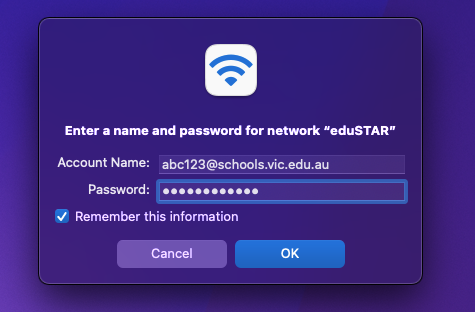
Enter School email and password
Step 4:
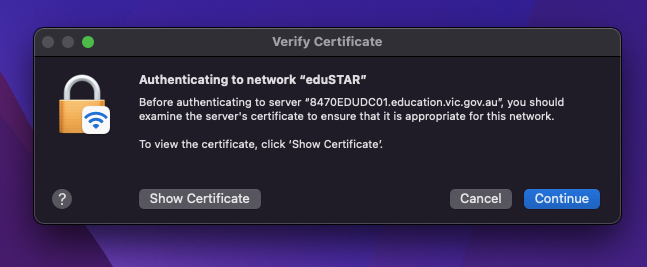
Click “Continue“on the Verify Certificate window
Step 5:
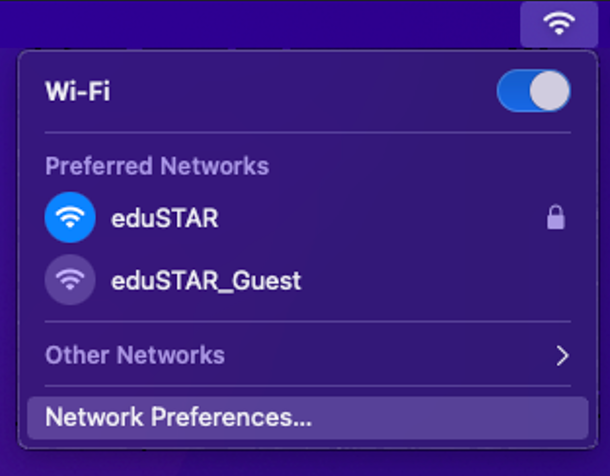
Click on “Network Preferences” on the WiFi Widget
Step 6:
Click on “Advanced“
Note: you may have to unlock the page via the Padlock on the bottom left.
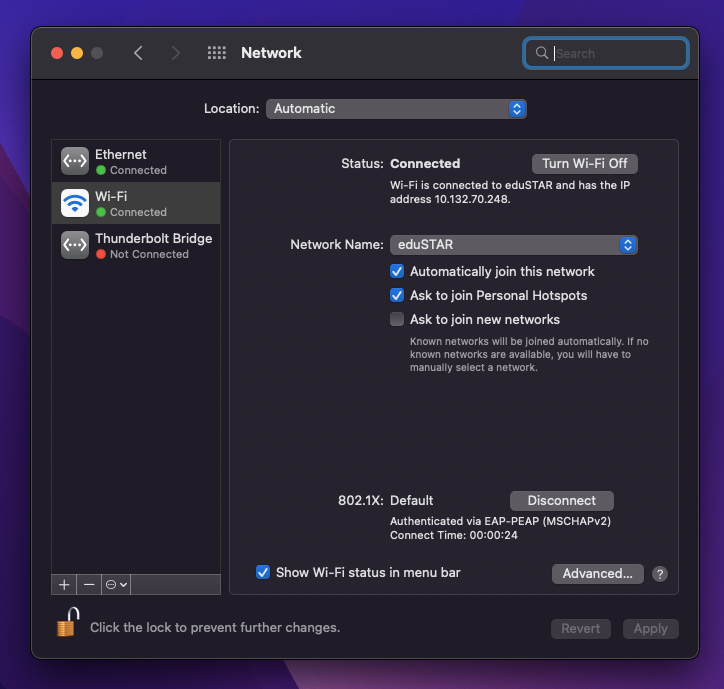
Step 7:
Click on Proxies then check “Auto Proxy Discovery”
Then OK. Then Apply
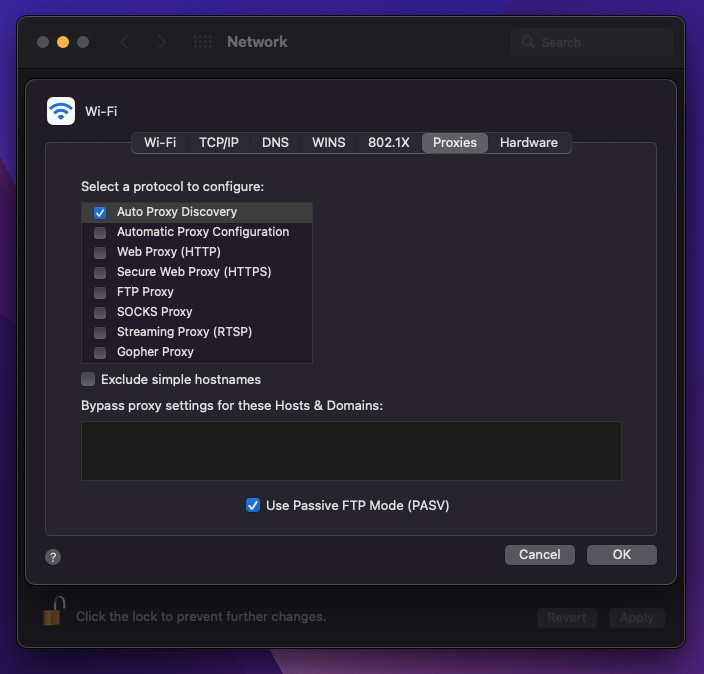
Step 8: Test internet by going to a website (not google!) e.g. https://cnn.com/
You are now on the eduSTAR Internet
Well Done!