

To complete this guide you will need to be an Administrator on your Mac.
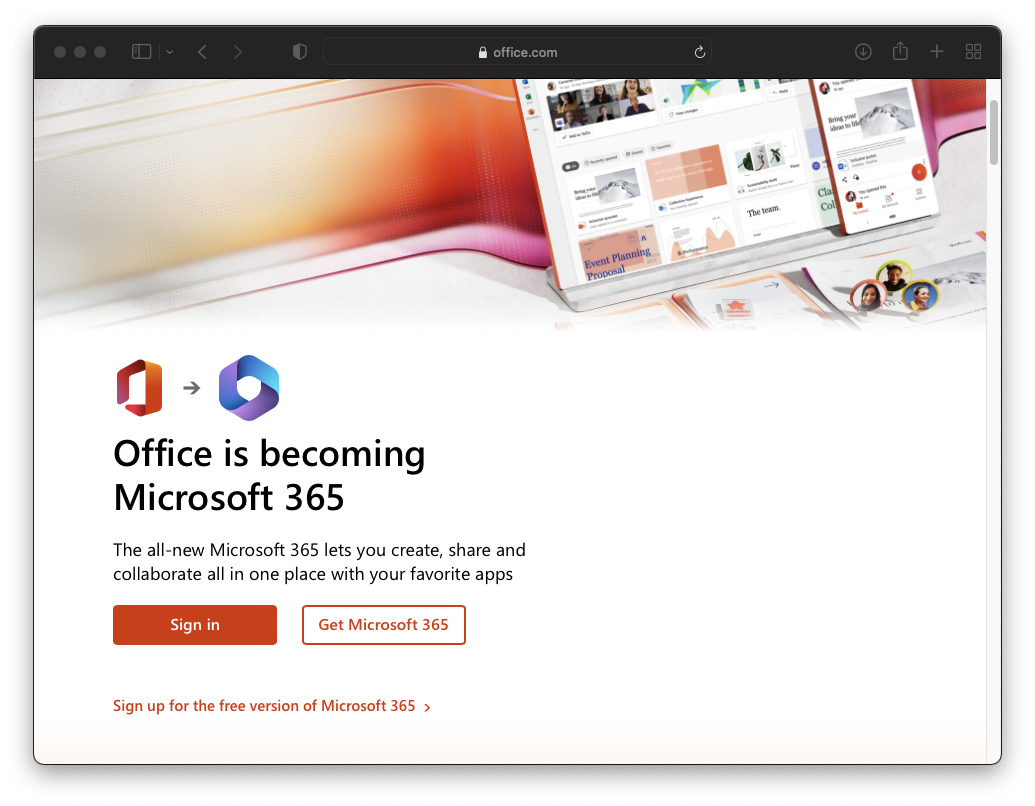
Step 2:
Sign in using your student login
(same as teams)
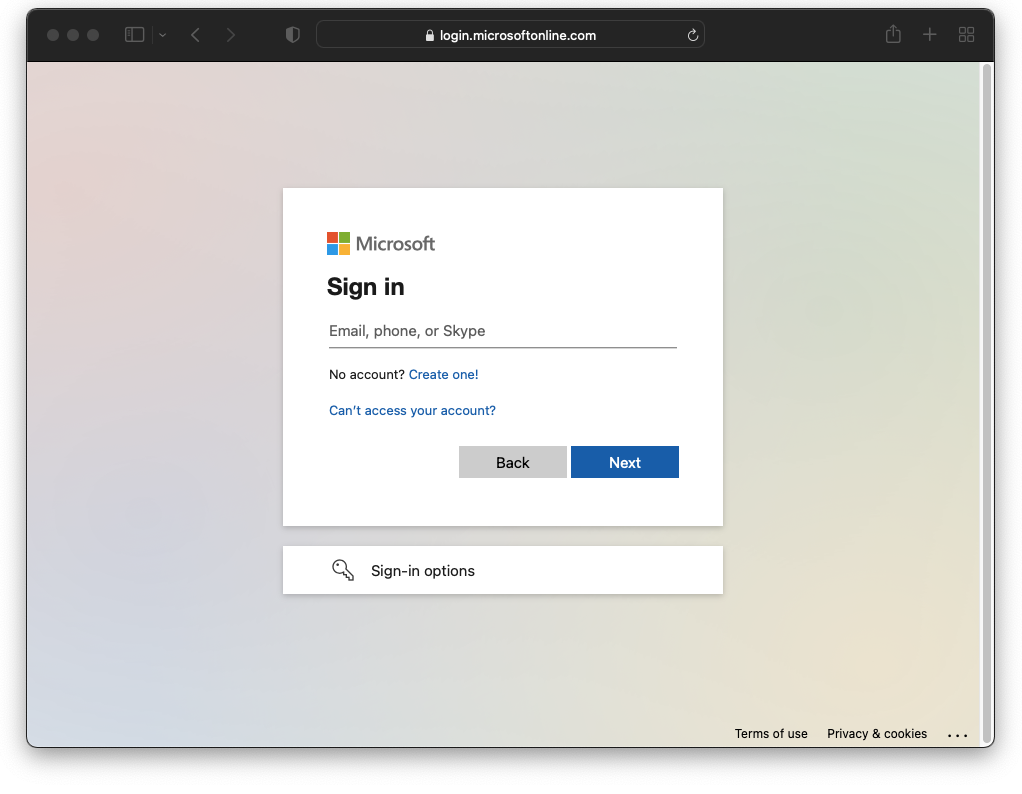
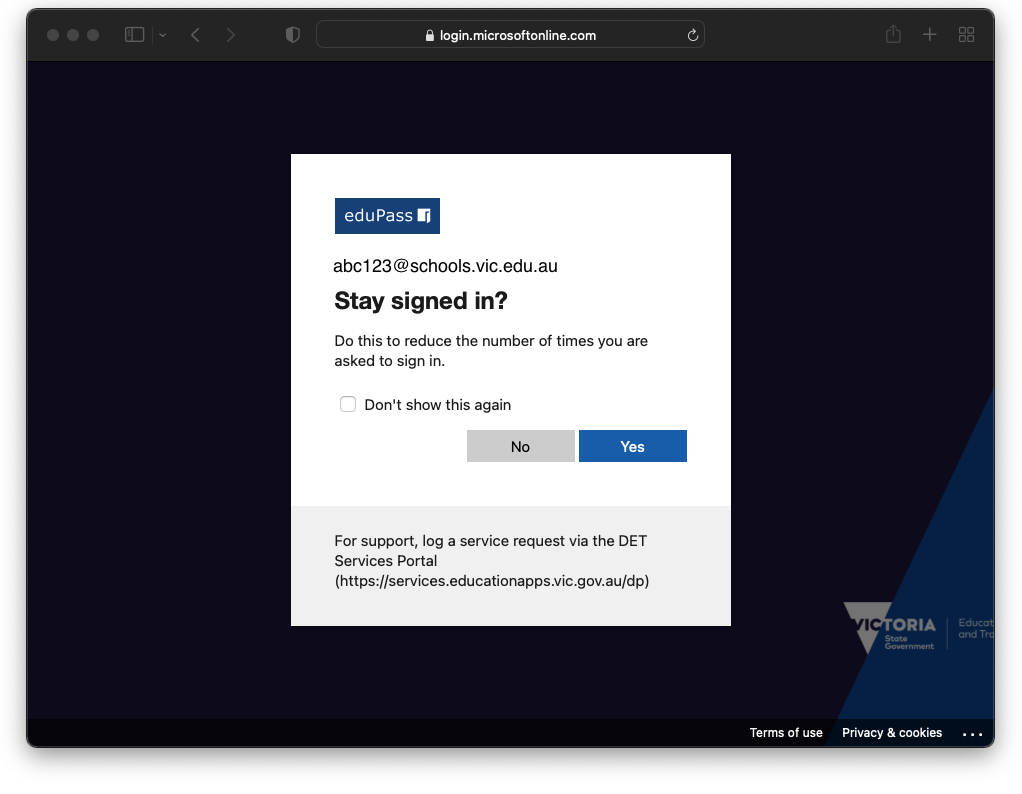
Step 3:
Click “Yes” to continue
Step 4:
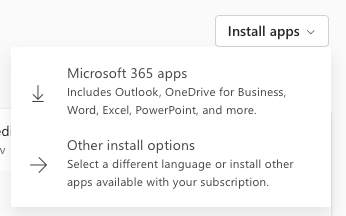
Click “Install apps”
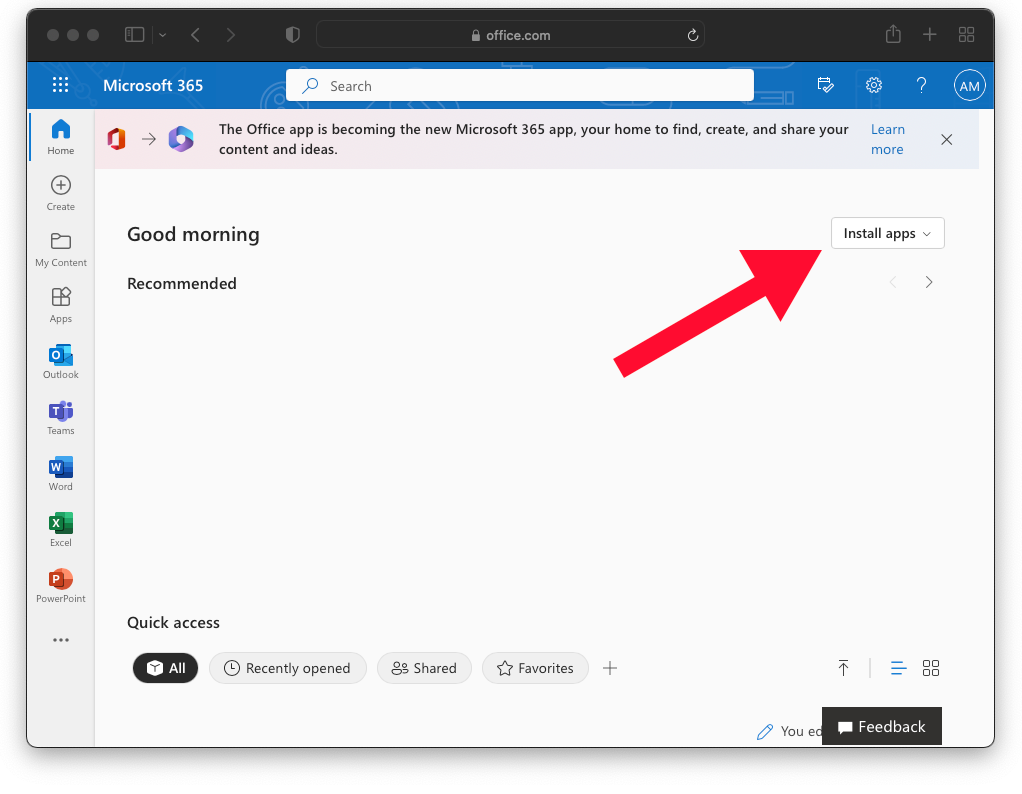
then “Microsoft 365 apps“
Step 5:
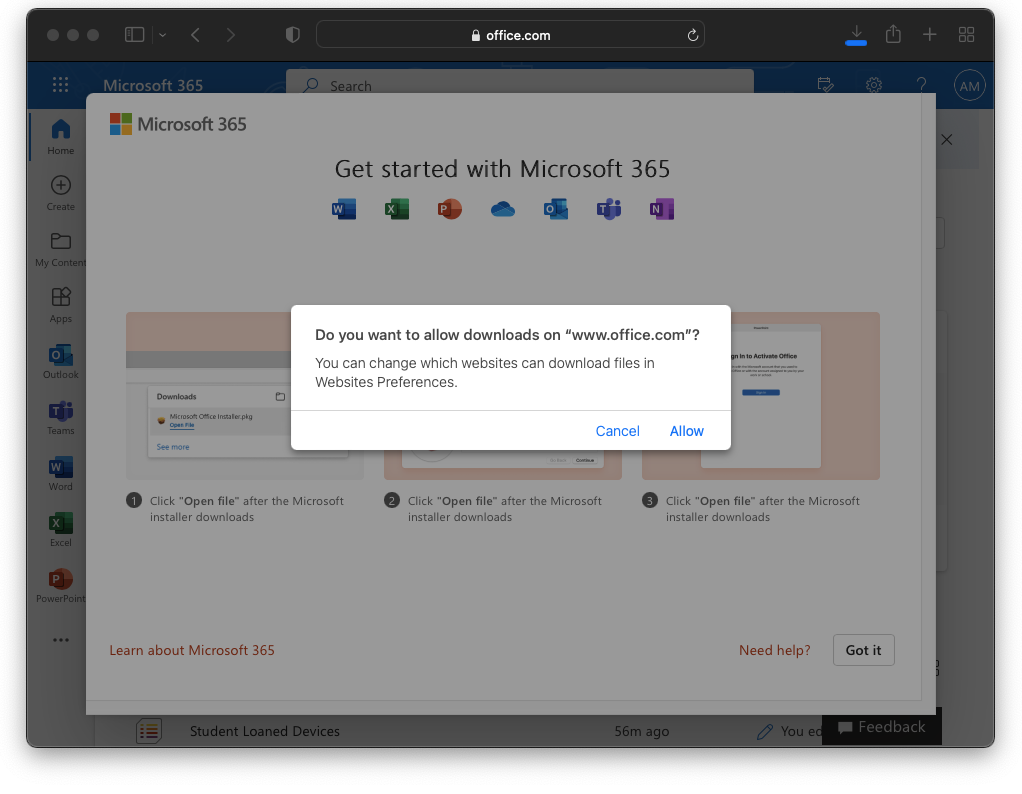
You may be prompted to allow downloads.
Click “Allow” to continue
Step 6:
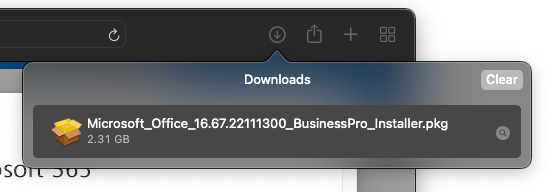
Click on “Downloads” then click on the “Microsoft_Office” download
Step 7:
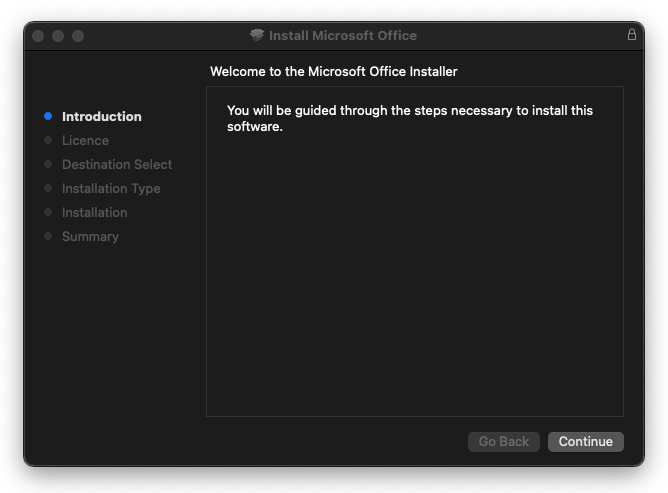
The Microsoft Office Installer will open. Click “Continue“
Step 8:
Click “Continue” then “Agree” to proceed
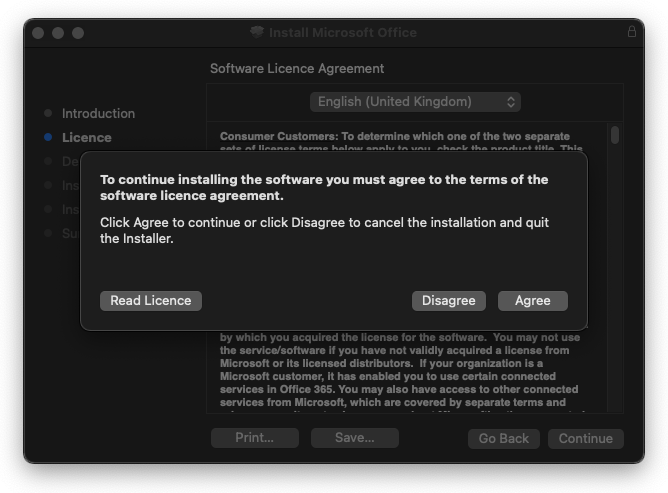
Step 9:
Click “Install”
You may be prompted to enter your Mac password.
(Mac sign in)
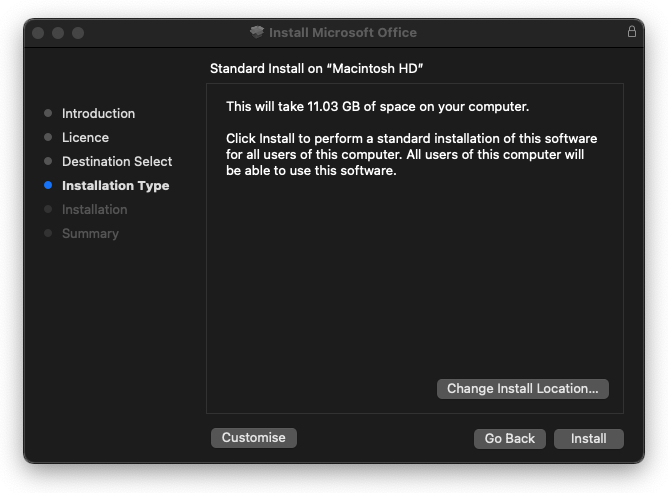
Step 10:
Wait for the installer to complete.
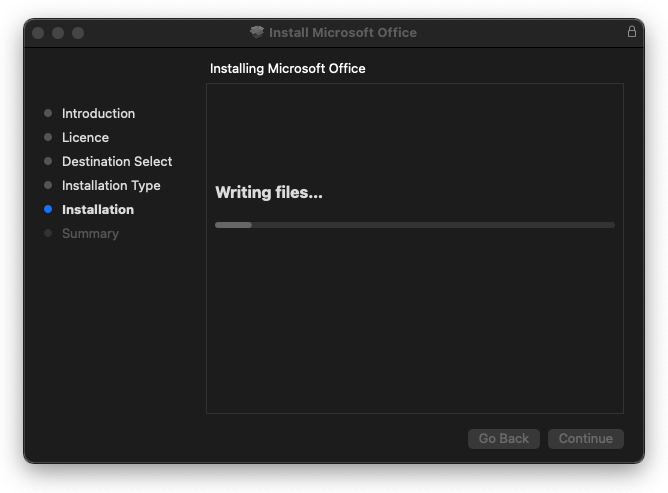
Step 11:
Office 365 & Teams is now installed.
Click “Close“
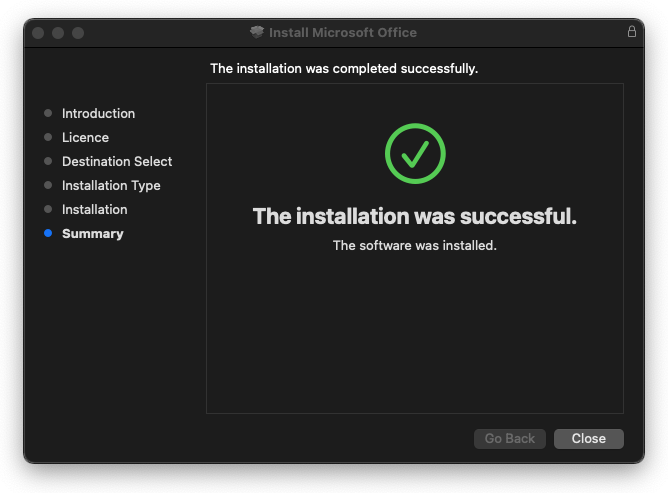
Step 12:
Open Teams using the spotlight search or via Launchpad
Click “OK” for the required data notice.
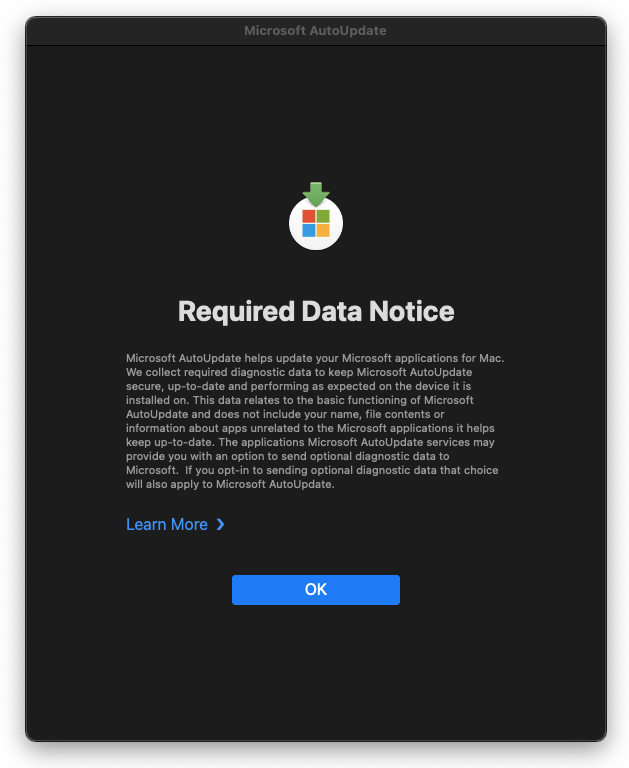
Step 13:
Teams will require your Student Login Details
Click “Get started“

Step 14:
Enter your Student Email
Then click “Next“
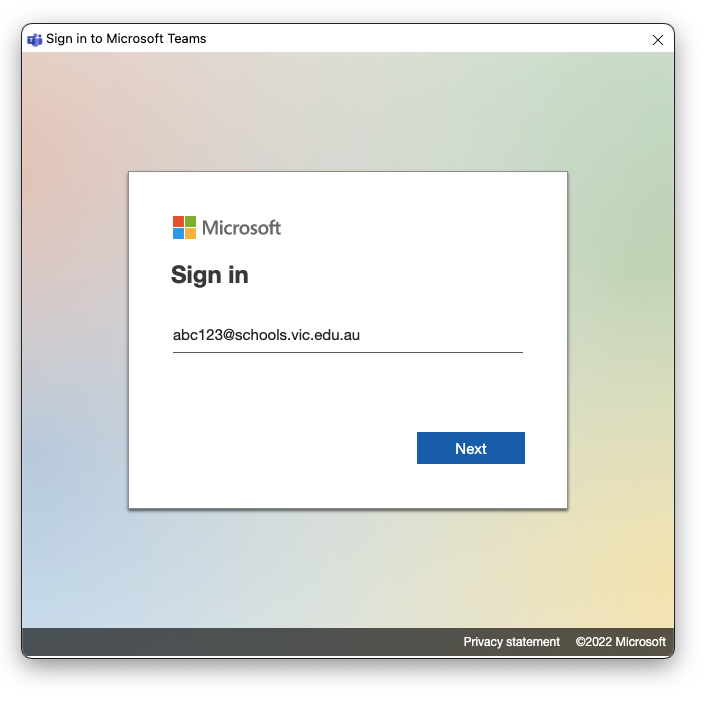
Step 15:
Enter your Student Password
Then click “Sign in“
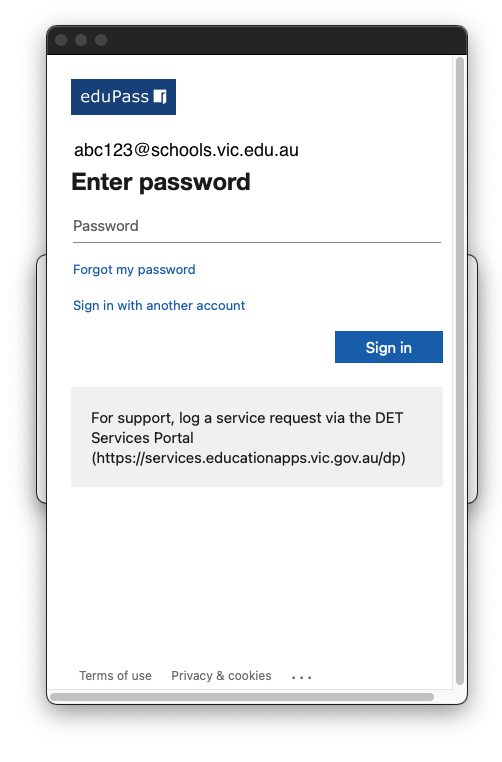
Step 16:
You are now signed into Teams
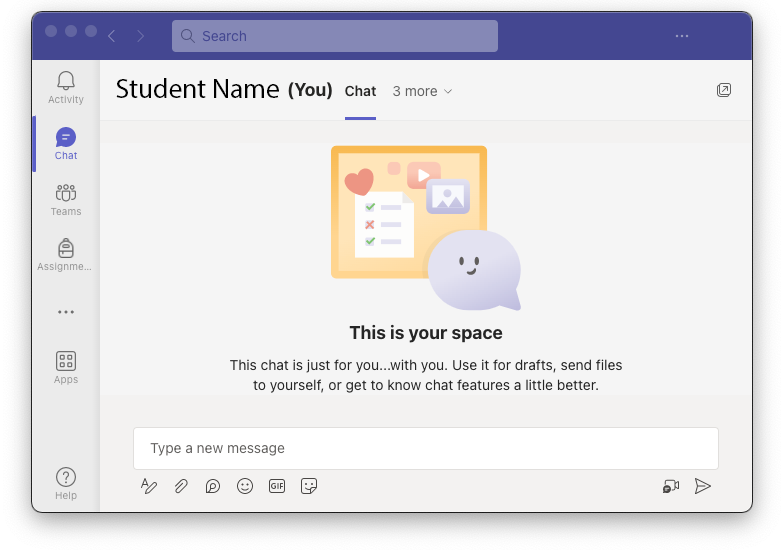
Step 17:
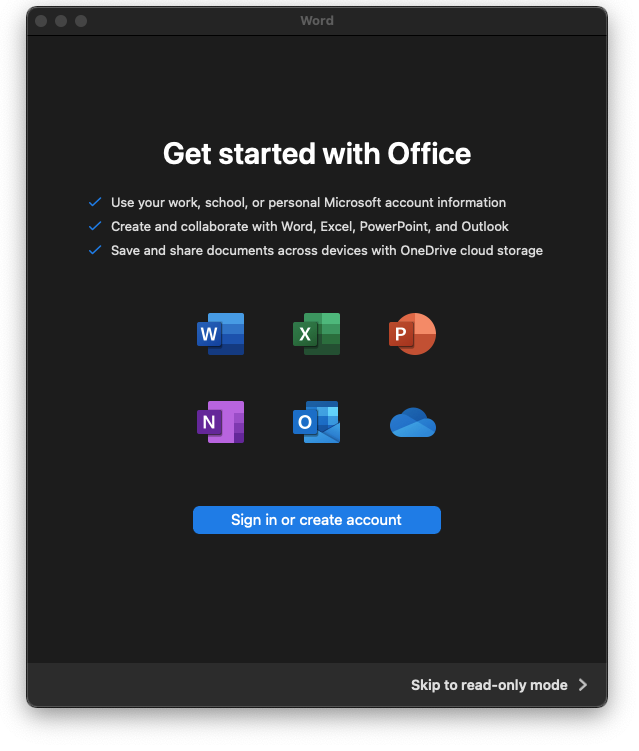
Repeat sign in steps to sign into other office applications
You have now installed Microsoft Office and Teams.
Well Done!